---
source_url: "https://firebase.google.com/docs/auth/web/firebaseui"
title: Easily add sign-in to your Web app with FirebaseUI
mirrored_at: 2026-08-29T13:02:23.240Z
host: firebase.google.com
cited_in_42a: true
mirror_canonical: "https://index.42a.ai/firebase.google.com/docs/auth/web/firebaseui"
---
> **Original source:** https://firebase.google.com/docs/auth/web/firebaseui
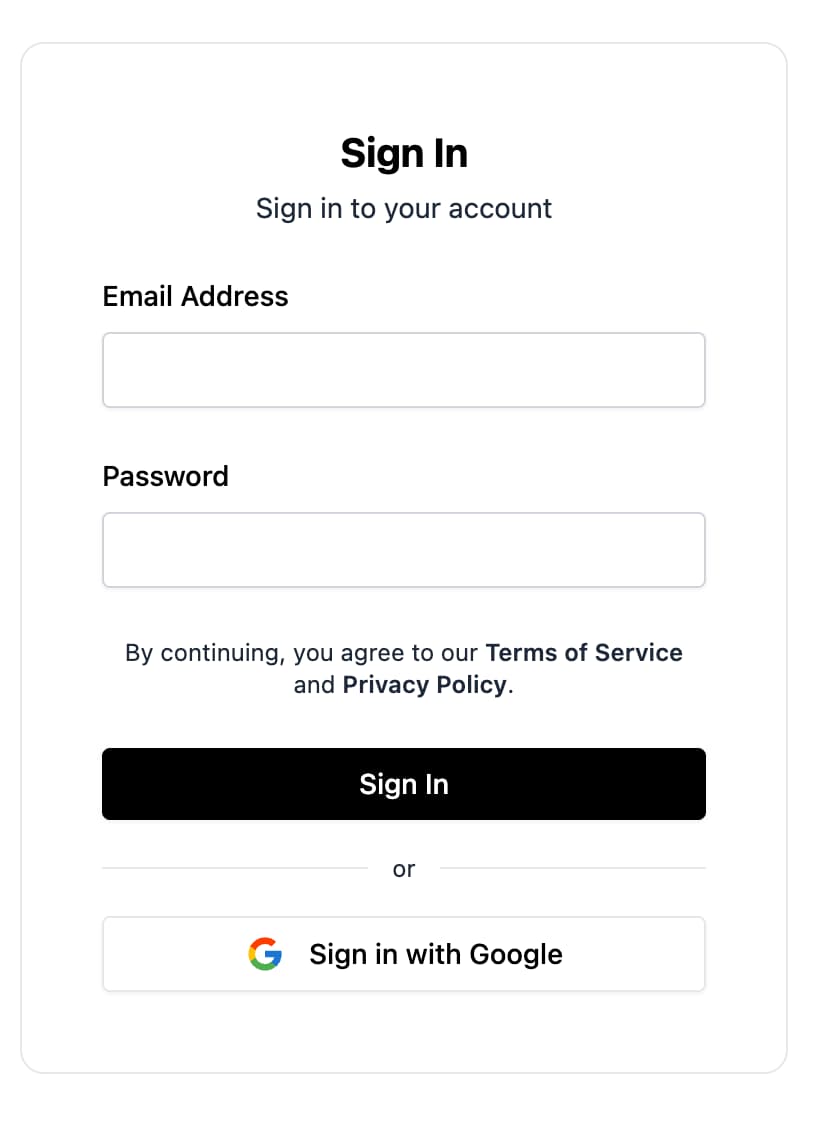
FirebaseUI for Web is a set of libraries built on the [Firebase Authentication](https://firebase.google.com/auth) JavaScript SDK that help you ship authentication flows quickly.
FirebaseUI for Web provides these benefits:
- Modern modular SDK support with `initializeApp(...)` and the current Firebase JS SDK.
- Composable screens, forms, and buttons instead of a single monolithic widget.
- Support for React, Shadcn, and Angular.
- Configurable behaviors for redirect vs popup flows, Google One Tap, anonymous upgrade, phone settings, and more.
- Localization support via `@firebase-oss/ui-translations`.
- Built-in support for email/password, email link, phone auth, OAuth providers, and multi-factor flows.
This guide walks through installation, initialization, sign-in methods, and common configuration for React, Shadcn, and Angular apps.
## Before you begin
1. Add Firebase to your web app:
Enable **Authentication** in the [Firebase console](https://console.firebase.google.com/).
Install `firebase` if it is not already in your project:
```
npm install firebase
```
Use the modular Firebase JS SDK:
```
import { initializeApp } from 'firebase/app';
const app = initializeApp({
/* your Firebase config */
});
```
2. Choose your platform and install FirebaseUI:
For [shadcn/ui](https://ui.shadcn.com/) based React apps, add the Firebase registry to `components.json`:
```
{
"registries": {
"@firebase": "https://firebaseopensource.com/r/{name}.json"
}
}
```
The auth components used throughout this guide are available from that registry, including `sign-in-auth-screen`, `sign-up-auth-screen`, `email-link-auth-screen`, `oauth-screen`, `phone-auth-screen`, `google-sign-in-button`, `apple-sign-in-button`, and `github-sign-in-button`.
Then add the components you want to use:
```
npx shadcn@latest add @firebase/sign-in-auth-screen @firebase/google-sign-in-button
```
This installs the underlying React FirebaseUI dependencies for you.
For React apps without shadcn/ui, install:
```
npm install @firebase-oss/ui-react@beta @firebase-oss/ui-styles
```
For Angular apps, install:
```
npm install @angular/fire @firebase-oss/ui-angular@beta @firebase-oss/ui-core@beta @firebase-oss/ui-styles@beta
```
## Initialize FirebaseUI
Create a shared UI store with `initializeUI(...)`, then pass it to your framework integration.
### React
```
import { initializeApp } from 'firebase/app';
import { initializeUI } from '@firebase-oss/ui-core';
import { FirebaseUIProvider } from '@firebase-oss/ui-react';
const app = initializeApp({
/* your Firebase config */
});
const ui = initializeUI({
app,
});
export function AppProviders({ children }: { children: React.ReactNode }) {
return {children};
}
```
### Shadcn
Shadcn uses the same setup as React, because it also uses `@firebase-oss/ui-react` under the hood:
```
import { initializeApp } from 'firebase/app';
import { initializeUI } from '@firebase-oss/ui-core';
import { FirebaseUIProvider } from '@firebase-oss/ui-react';
const app = initializeApp({
/* your Firebase config */
});
const ui = initializeUI({
app,
});
export function AppProviders({ children }: { children: React.ReactNode }) {
return {children};
}
```
These components use your existing shadcn styles; you typically do not import FirebaseUI's bundled CSS when using the shadcn registry.
### Angular
```
import { type ApplicationConfig } from '@angular/core';
import { provideFirebaseApp, initializeApp } from '@angular/fire/app';
import { provideFirebaseUI } from '@firebase-oss/ui-angular';
import { initializeUI } from '@firebase-oss/ui-core';
export const appConfig: ApplicationConfig = {
providers: [
provideFirebaseApp(() =>
initializeApp({
/* your Firebase config */
}),
),
provideFirebaseUI((apps) =>
initializeUI({
app: apps[0],
}),
),
],
};
```
## Include styles
FirebaseUI has pre-built UI components for React and Angular. To use the components, you need to include their CSS:
If you are using Tailwind with React or Angular:
Otherwise, include the FirebaseUI styles:
```
@import '@firebase-oss/ui-styles/dist.min.css';
```
FirebaseUI for Web supports custom theming via CSS variable overrides. For more details, see the [theming documentation](https://github.com/firebase/firebaseui-web#theming).
## Set up sign-in methods
Before users can sign in, enable each provider you want in **Authentication** -> **Sign-in method** in the Firebase console.
FirebaseUI for Web uses screens, forms, and buttons that you render directly. Shared configuration for those flows lives in `behaviors` passed to `initializeUI(...)`.
### Email address and password
1. Enable **Email/Password** in the Firebase console.
2. Render `SignInAuthScreen` or `SignUpAuthScreen` in React, the generated `sign-in-auth-screen` or `sign-up-auth-screen` components in Shadcn, or `fui-sign-in-auth-screen` or `fui-sign-up-auth-screen` in Angular.
### Email link authentication
1. Enable **Email/Password** and **Email link (passwordless sign-in)** in the Firebase console.
2. Render `EmailLinkAuthScreen` in React, the generated `email-link-auth-screen` component in Shadcn, or `fui-email-link-auth-screen` in Angular.
3. Complete sign-in with the current URL using the core helpers when needed.
```
import { completeEmailLinkSignIn } from '@firebase-oss/ui-core';
await completeEmailLinkSignIn(ui, window.location.href);
```
### OAuth providers
FirebaseUI for Web supports built-in buttons for providers such as Google, Apple, Facebook, GitHub, Microsoft, and X/Twitter.
1. Enable the provider in the Firebase console.
2. Add your app domain to **Authorized domains** where required.
3. Render `OAuthScreen` with the provider buttons you want, such as `GoogleSignInButton`, `AppleSignInButton`, `FacebookSignInButton`, `GitHubSignInButton`, `MicrosoftSignInButton`, or `TwitterSignInButton` in React, the generated shadcn equivalents in your app, or `fui-oauth-screen` with `fui-google-sign-in-button`, `fui-apple-sign-in-button`, `fui-facebook-sign-in-button`, `fui-github-sign-in-button`, `fui-microsoft-sign-in-button`, or `fui-twitter-sign-in-button` in Angular.
### Phone number
1. Enable **Phone** in the Firebase console.
2. Add your app domain to **Authorized domains**.
3. Render `PhoneAuthScreen` or `PhoneAuthForm` in React, the generated `phone-auth-screen` or `phone-auth-form` components in Shadcn, or `fui-phone-auth-screen` in Angular.
Optional: configure allowed countries, default country, or reCAPTCHA behavior:
```
import {
countryCodes,
initializeUI,
recaptchaVerification,
} from '@firebase-oss/ui-core';
const ui = initializeUI({
app,
behaviors: [
countryCodes({
allowedCountries: ['GB', 'US', 'FR'],
defaultCountry: 'GB',
}),
recaptchaVerification({
size: 'compact',
theme: 'light',
}),
],
});
```
## Customization
Configure shared auth behavior in `behaviors` passed to `initializeUI(...)`.
### Require a display name during sign-up
```
import { initializeUI, requireDisplayName } from '@firebase-oss/ui-core';
const ui = initializeUI({
app,
behaviors: [requireDisplayName()],
});
```
### Upgrade anonymous users
Use the `autoUpgradeAnonymousUsers(...)` behavior to merge an anonymous session into a signed-in account.
```
import {
autoUpgradeAnonymousUsers,
initializeUI,
} from '@firebase-oss/ui-core';
const ui = initializeUI({
app,
behaviors: [
autoUpgradeAnonymousUsers({
async onUpgrade(ui, oldUserId, credential) {
// Migrate or merge user data here if needed.
},
}),
],
});
```
For migration details, see [MIGRATION.md](https://github.com/firebase/firebaseui-web/blob/main/MIGRATION.md)).
Render the auth screen you want and handle success in component callbacks or Angular outputs.
### React
\`\`\`tsx import { SignInAuthScreen } from '@firebase-oss/ui-react'; import { useNavigate } from 'react-router';
export function SignInPage() { const navigate = useNavigate();
return ( { navigate('/dashboard'); }} /> ); } \`\`\`
### Shadcn
Shadcn uses the same runtime and flow as React. The only difference is that you import the generated component from your app instead of from `@firebase-oss/ui-react`:
\`\`\`tsx import { SignInAuthScreen } from '@/components/sign-in-auth-screen'; import { useNavigate } from 'react-router';
export function SignInPage() { const navigate = useNavigate();
return ( { navigate('/dashboard'); }} /> ); } \`\`\`
### Angular
```
import { Component } from '@angular/core';
import { Router } from '@angular/router';
import { SignInAuthScreenComponent } from '@firebase-oss/ui-angular';
import type { User } from '@angular/fire/auth';
@Component({
selector: 'app-sign-in-page',
standalone: true,
imports: [SignInAuthScreenComponent],
template: `
`,
})
export class SignInPageComponent {
constructor(private router: Router) {}
onSignIn(user: User) {
this.router.navigate(['/dashboard']);
}
}
```
## Sign out
To sign users out, use the standard Firebase Authentication sign-out API:
```
import { getAuth, signOut } from 'firebase/auth';
const auth = getAuth(app);
await signOut(auth);
```
Choose the provider sign-in flow with behaviors:
- `providerPopupStrategy()` for popup flows
- `providerRedirectStrategy()` for redirect flows
Popup is the default, so you only need to configure redirect explicitly:
```
import { initializeUI, providerRedirectStrategy } from '@firebase-oss/ui-core';
const ui = initializeUI({
app,
behaviors: [providerRedirectStrategy()],
});
```
To render OAuth buttons, add them to your platform-specific screen.
### React
```
import {
GitHubSignInButton,
GoogleSignInButton,
OAuthScreen,
} from '@firebase-oss/ui-react';
export function OAuthPage() {
return (
);
}
```
### Shadcn
```
import { GitHubSignInButton } from '@/components/github-sign-in-button';
import { GoogleSignInButton } from '@/components/google-sign-in-button';
import { OAuthScreen } from '@/components/oauth-screen';
export function OAuthPage() {
return (
);
}
```
### Angular
```
import { Component } from '@angular/core';
import {
GithubSignInButtonComponent,
GoogleSignInButtonComponent,
OAuthScreenComponent,
} from '@firebase-oss/ui-angular';
@Component({
selector: 'app-oauth-page',
standalone: true,
imports: [
OAuthScreenComponent,
GoogleSignInButtonComponent,
GithubSignInButtonComponent,
],
template: `
`,
})
export class OAuthPageComponent {}
```
## Google One Tap
Use the `oneTapSignIn(...)` behavior to enable Google One Tap:
```
import { initializeUI, oneTapSignIn } from '@firebase-oss/ui-core';
const ui = initializeUI({
app,
behaviors: [
oneTapSignIn({
clientId: 'YOUR_GOOGLE_WEB_CLIENT_ID',
autoSelect: false,
cancelOnTapOutside: false,
}),
],
});
```
Make sure Google sign-in is enabled in the Firebase console, then copy the web client ID from the Google provider settings.
## Terms of service and privacy policy
Attach policy links through the platform provider configuration.
### React
\`\`\`tsx import { FirebaseUIProvider } from '@firebase-oss/ui-react';
{children} ; \`\`\`
### Shadcn
Use the same `FirebaseUIProvider` configuration as React.
### Angular
```
import { type ApplicationConfig } from '@angular/core';
import { provideFirebaseUIPolicies } from '@firebase-oss/ui-angular';
export const appConfig: ApplicationConfig = {
providers: [
provideFirebaseUIPolicies(() => ({
termsOfServiceUrl: 'https://example.com/terms',
privacyPolicyUrl: 'https://example.com/privacy',
})),
],
};
```
## Translations
FirebaseUI for Web supports localization through `@firebase-oss/ui-translations`.
```
import { initializeUI } from '@firebase-oss/ui-core';
import { registerLocale } from '@firebase-oss/ui-translations';
const enUsCustom = registerLocale('en-US', {
labels: {
signIn: 'Continue',
},
});
const ui = initializeUI({
app,
locale: enUsCustom,
});
```
## Next steps
- Read [README.md](https://github.com/firebase/firebaseui-web/blob/main/README.md) for the full API, behaviors, and component reference.
- Read [MIGRATION.md](https://github.com/firebase/firebaseui-web/blob/main/MIGRATION.md) if you are migrating an existing app to FirebaseUI for Web.
- See the package-specific docs in [packages/react/README.md](https://github.com/firebase/firebaseui-web/blob/main/packages/react/README.md), [packages/shadcn/README.md](https://github.com/firebase/firebaseui-web/blob/main/packages/shadcn/README.md), and [packages/angular/README.md](https://github.com/firebase/firebaseui-web/blob/main/packages/angular/README.md).
- Explore the examples in [examples/react](https://github.com/firebase/firebaseui-web/tree/main/examples/react), [examples/shadcn](https://github.com/firebase/firebaseui-web/tree/main/examples/shadcn), and [examples/angular](https://github.com/firebase/firebaseui-web/tree/main/examples/angular).